 teneron
The home PC security checklist
Twelve steps that make a real difference, most of them free. Work through them once, then revisit every few months. This page contains no partner links.
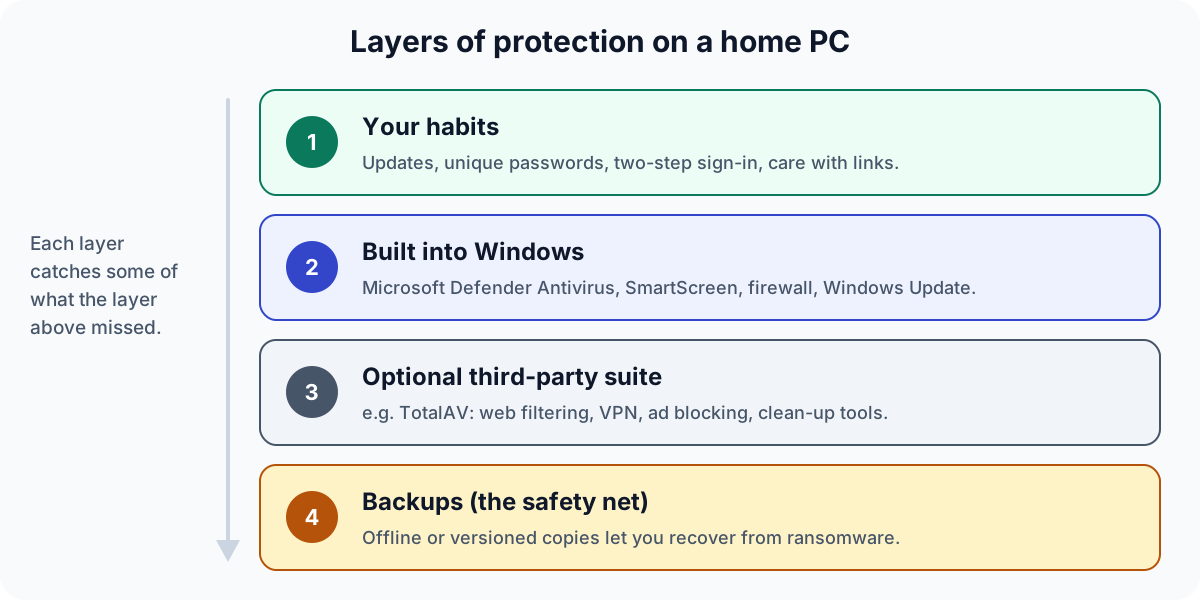
Your system
- Turn on automatic updates in Settings → Windows Update, and restart when asked. Do the same for your browser (most update themselves) and for apps such as PDF readers.
- Check that antivirus is on. Open Windows Security → Virus & threat protection. If you use a third-party product, it should be listed there as active.
- Leave SmartScreen and the firewall on. Both are in Windows Security.
- Use a standard account for everyday work and keep an administrator account for installing software. It limits what malware can do.
- Remove software you do not use and browser extensions you do not recognise.
Your accounts
- Secure your main e-mail account first with a long, unique password and two-step verification: it can reset every other account.
- Use a password manager (many browsers include one) so every account gets a unique password.
- Turn on two-step verification for banking, shopping and social media, preferably with an authenticator app or passkey rather than SMS.
- Check whether your address appears in known breaches with a reputable breach-notification service, and change any reused password.
Your data
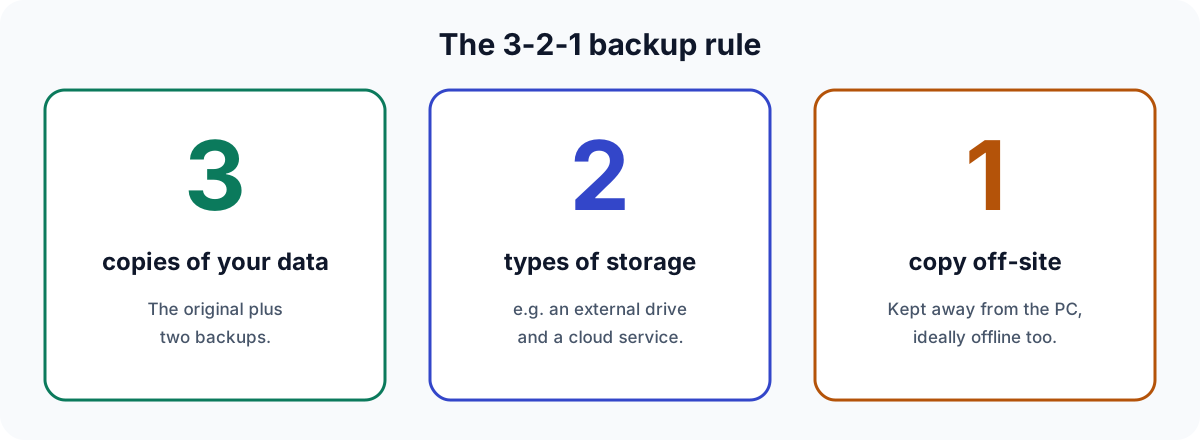
- Back up using the 3-2-1 rule (below), with at least one copy disconnected from the PC.
- Test a restore – pick a file and get it back from the backup.
- Encrypt laptops with BitLocker or Device Encryption where available, so a lost laptop is not a data leak.
Recognising phishing
- Urgency or threats (“act within 24 hours”).
- A sender address or link that does not quite match the real organisation.
- Requests for passwords, codes or card details – legitimate organisations do not ask for these by e-mail or text message.
- Unexpected attachments, especially archives, Office files asking you to “enable content”, or shortcuts.
When in doubt, do not click: open the organisation’s website or app yourself.
If something has gone wrong
- Disconnect the PC from the internet.
- From a different, clean device, change the password of your e-mail and banking accounts and sign out other sessions.
- Run a full scan with your antivirus; Microsoft Defender also offers an offline scan.
- If files are encrypted by ransomware, do not pay; restore from backup and report it to the police or your national cyber-security authority.
- Tell your bank immediately if card or banking details may be affected.
Sources
- Microsoft Support – Stay protected with Windows Security
- UK National Cyber Security Centre – Top tips for staying secure online
- CISA – #StopRansomware
- ENISA – Threat Landscape
Illustrations are original diagrams by teneron.online.